
Start with readable source material
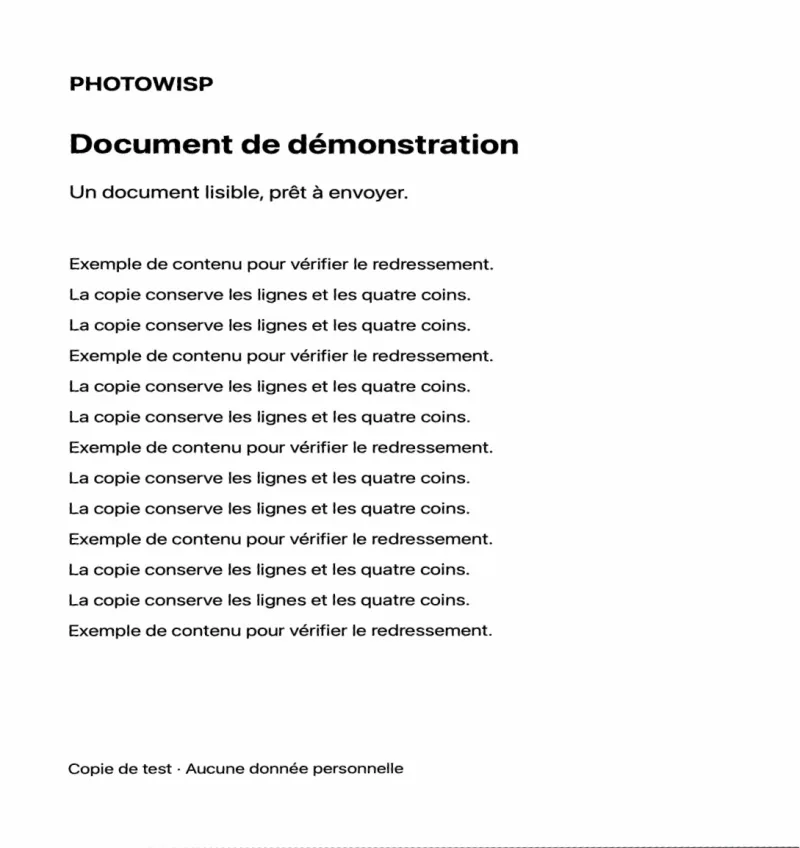
Perspective correction makes the page appear flat in the image. It cannot recover writing that is blurred, hidden or lost in glare. Choose a photograph showing the entire page, with even lighting and enough focus to read small characters. If necessary, take another photo before beginning the correction.
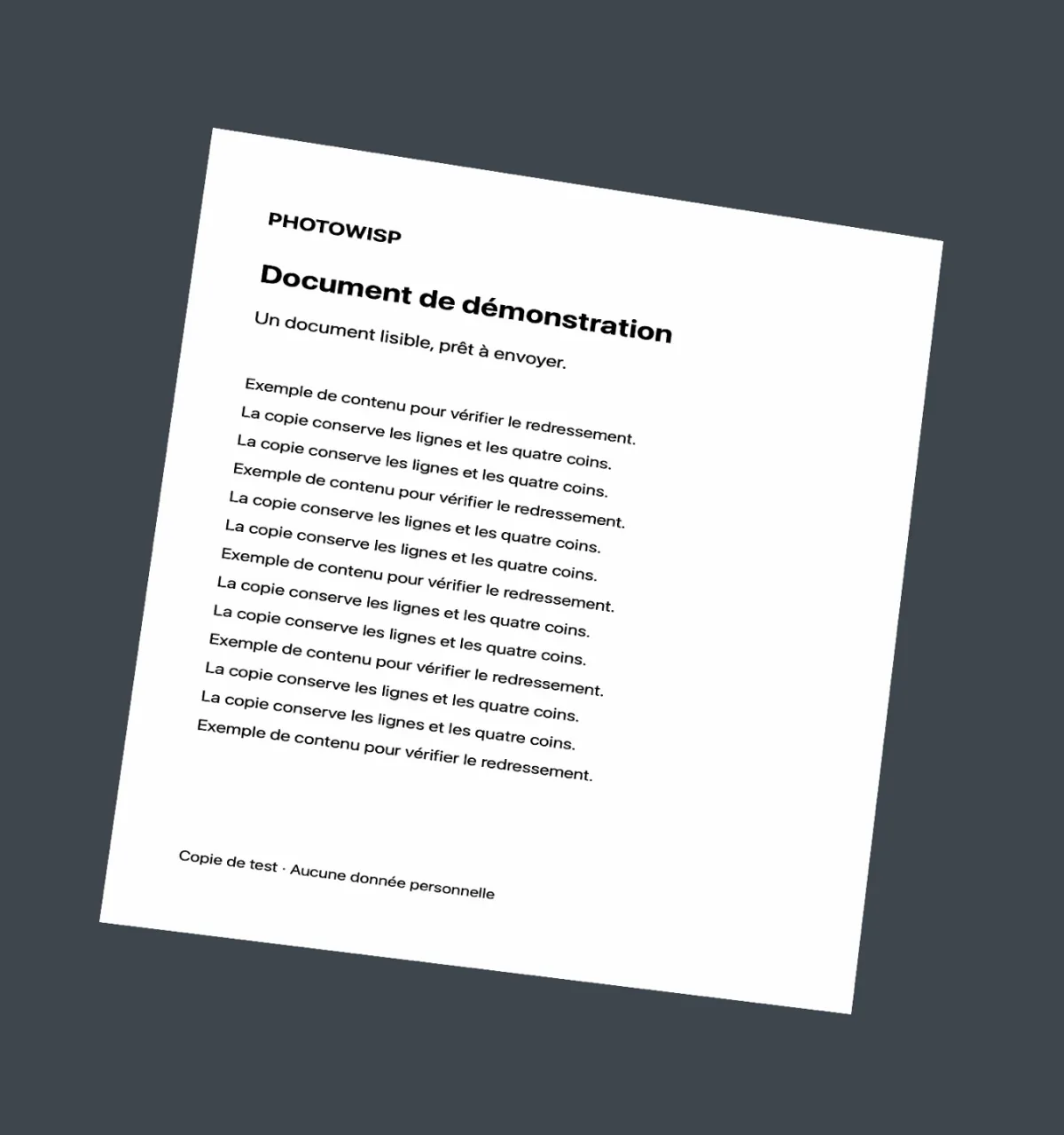
Receipts, invoices and sheets of paper are easier to identify against a distinct background. Long receipts retain their proportions. If part of the paper extends outside the photo, adjusting its corners cannot restore the missing content. Keep all important details visible, including references and small print near the edges.
Adjust the four corners
The main Crop document workflow handles each document individually. Automatic suggestions need checking because a table edge, picture frame or another sheet may be mistaken for your intended document. Use the preview as the final guide.
- Select Crop document and add the JPEG, PNG or HEIC photo of your receipt or page.
- Select the relevant image and open Crop document…
- Place all four handles on the paper’s corners. Drag them or enter their percentage coordinates.
- Check the cropped preview on the right. If detection fails, place the corners manually without crossing them.
- Click Apply crop, inspect the ready JPEG and use Save copies.
Review all useful content
Read the top and bottom lines, totals, dates and reference numbers. An overly tight crop can remove useful information; a misplaced corner can distort characters. Reset suggested corners lets you return to the automatic proposal if your adjustments become unhelpful. Check the complete page rather than focusing only on its centre.
In this main workflow, PhotoWisp creates a JPEG ready to save directly. File size and dimension targets from other actions do not apply. Do not assume that the result satisfies a form’s size limit: check the actual output size separately before using the image there.
Keep the source and understand the output
The output remains an image. PhotoWisp does not perform OCR text recognition or export PDF documents. Correcting perspective does not guarantee legal validity or acceptance by an organisation. Check the recipient’s instructions if they require a particular document format or type of evidence.
Metadata is removed from the corrected copy and the original is retained. Processing takes place on your Mac without sending the photograph to a server. PhotoWisp runs on macOS 14 or later on Intel and Apple Silicon. Open the saved copy at a useful reading size before adding it to your records or sending it onward.
Common questions
What if the document corners are not detected?
Place the four handles manually or enter their coordinates. They must form a valid quadrilateral without crossing.
Is the result a searchable PDF?
No. PhotoWisp produces a JPEG image. It does not perform OCR or export PDF.