
Start with the actual requirement
Check the receiving website or person’s instructions for accepted formats, size per file and any pixel requirements. File size and pixel dimensions measure different things. Resizing changes the number of pixels; compression changes how image information is stored. A smaller number of bytes alone does not guarantee that an upload will be accepted.
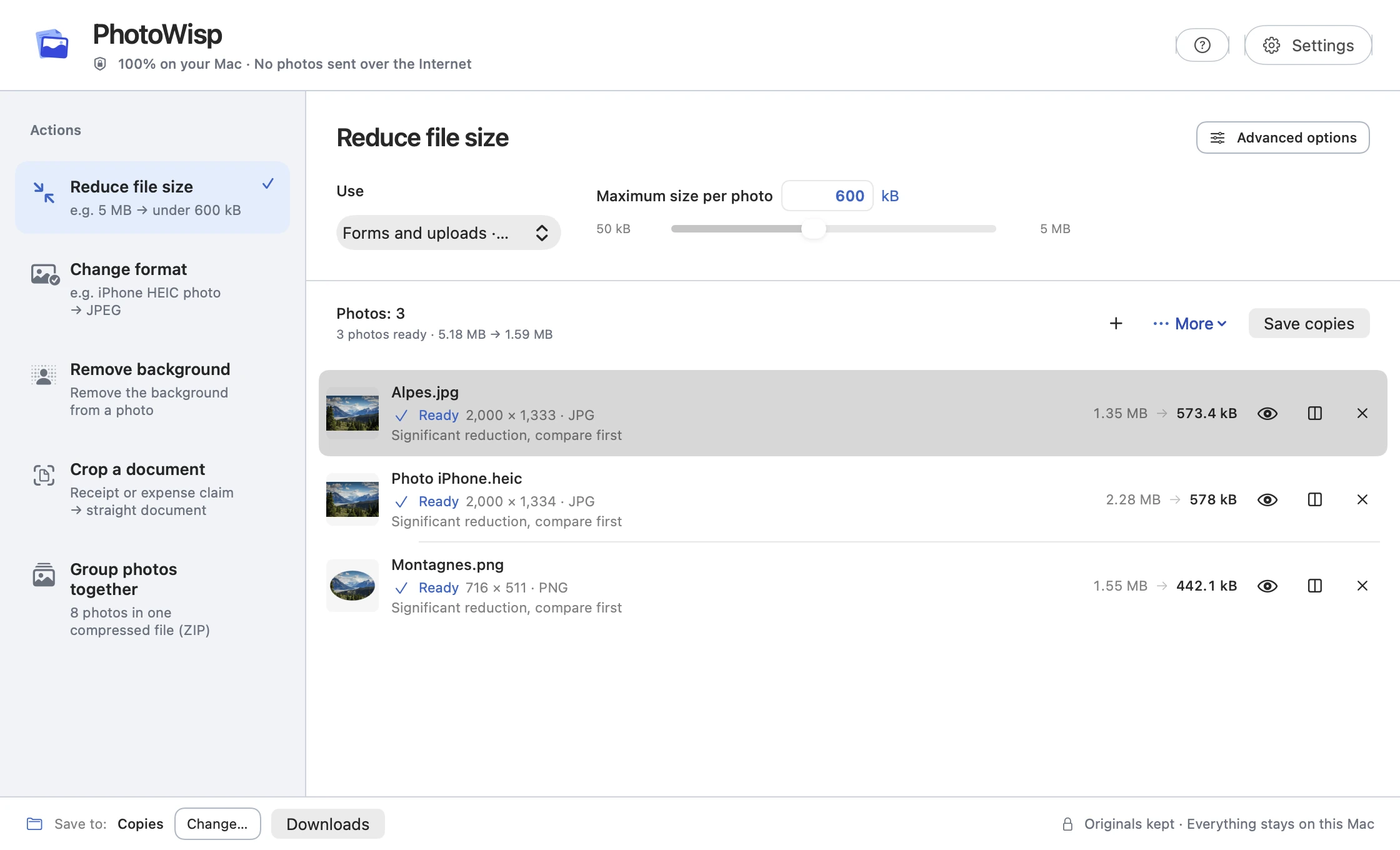
PhotoWisp starts with a target of 600 kB per photo. This is an adjustable starting point, not a rule for every website. The app remembers your last setting. It uses decimal units, so 1 MB means 1,000,000 bytes. A detailed scene may need a more visible compromise than an image with a plain background.
Prepare individual photos or a batch
Import JPEG, PNG or HEIC files, with up to 500 photos in a batch. Your chosen limit applies to each image rather than to the combined batch. Start with a representative image if you need to find a suitable balance.
- Drop your files into PhotoWisp or use Choose photos…
- Select Reduce file size and set the maximum size per photo for your destination.
- Open Advanced options if you also want to limit the longest edge. Proportions are retained and small images are never enlarged.
- Run the reduction and check the size and dimensions of the resulting copies.
- Use Preview and Compare before Save copies. Downloads is the initial destination; Change… lets you choose another folder.
Inspect meaningful details
Compression can lose detail. Compare the original and copy at 100%, paying particular attention to text, faces, fine textures and gradients. The engine may reduce pixel dimensions to reach the target, even when you have not selected an optional resizing limit. Check the reported output dimensions as well as the byte count.
If the image looks too soft, raise the target when the recipient’s rules allow it. Errors are reported per photo, so a problem with one image does not remove successful results. There is no single reliable percentage reduction for every photograph.
Save a copy for its intended use
PhotoWisp measures the actual output file size. You still need to test the file with the receiving service, which may apply separate format and dimension rules. For a photographed document, prioritise readable characters over an especially small file.
Preparation runs locally on macOS 14 or later, on Intel and Apple Silicon Macs, without sending photos to a server. The original remains available so you can make a different version later. Keep that source for uses that need more detail, such as a closer inspection or another destination.
Photo processing works without an internet connection or a PhotoWisp account. The app does not track your activity.
Common questions
Will 600 kB work with every form?
No. Check the service’s stated limit. PhotoWisp’s initial 600 kB target is adjustable.
Is the reduction guaranteed to be lossless?
No. Depending on the image and target, compression and reduced dimensions can remove detail. Inspect the copy before saving.