
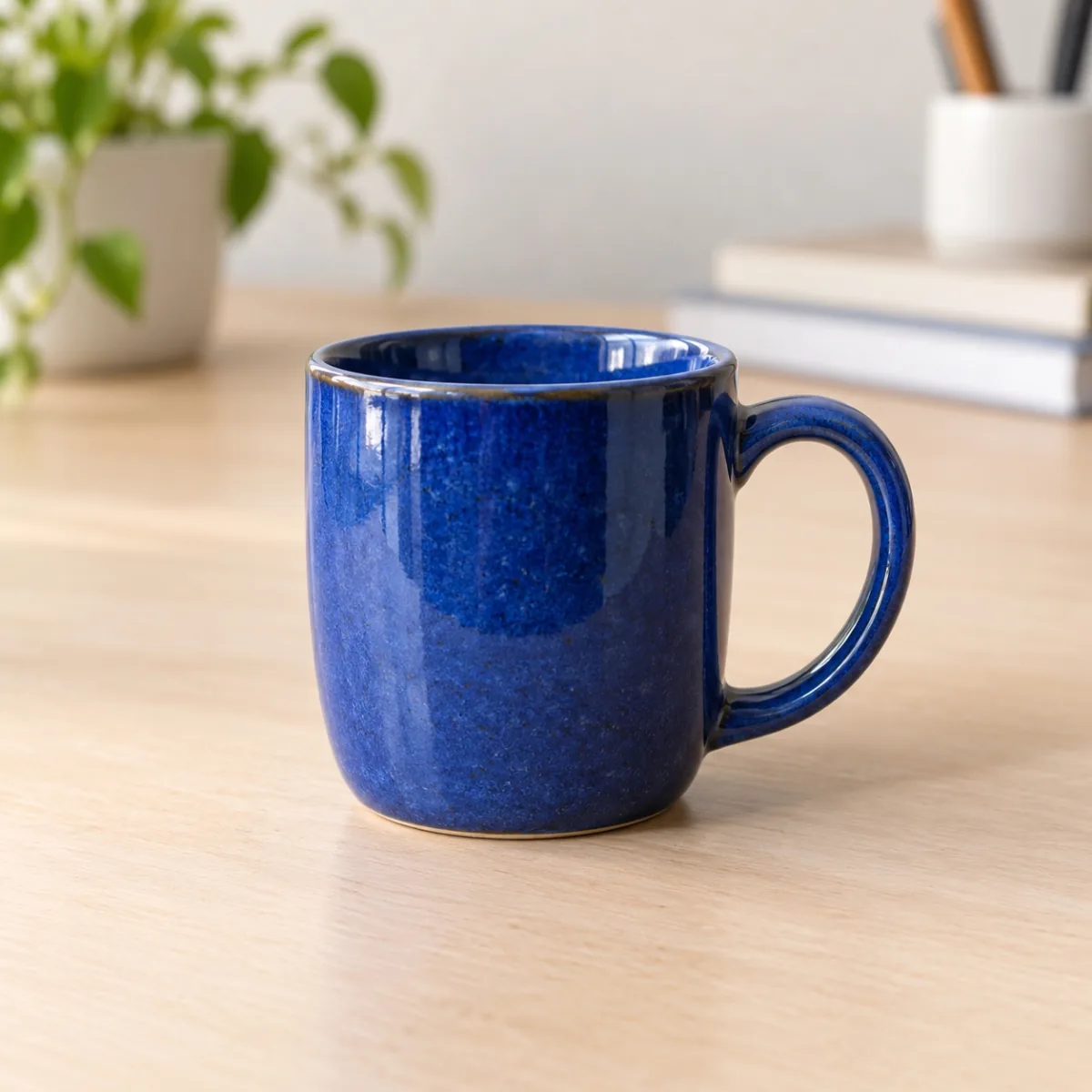
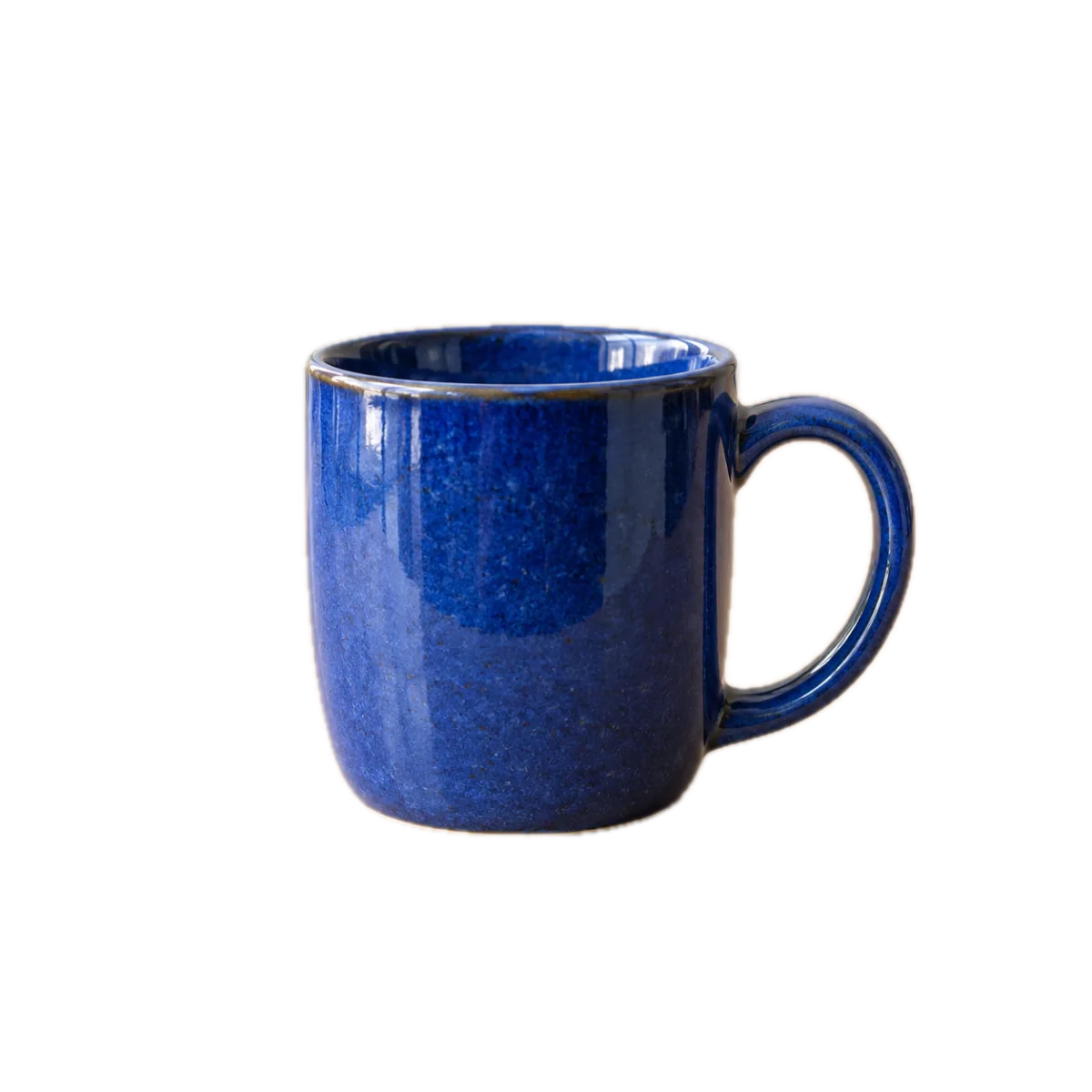
Begin with a distinct subject
A sharp object that stands apart from its surroundings provides a better starting point than a blurred shape on a similar background. Keep the whole subject inside the frame. If you can retake the photo, avoid heavy reflections and hidden parts. Background removal cannot reconstruct a part of the object that was never visible.
Automatic detection has limits. Fine hair, glass, shadows, translucent edges and busy backgrounds can produce imperfect outlines. Some images may have no detected subject. Use another source photo when the preview removes an important part of the subject or retains distracting pieces of the original scene.
Remove backgrounds from a photo or batch
Import JPEG, PNG or HEIC files, with up to 500 photos per batch. The main Remove background action uses a shared background choice for the batch. Each output still needs an individual check because one simple image does not establish the quality of every other result.
- Add the photos and select Remove background.
- Choose a transparent background for PNG copies, or white for JPEG copies.
- Run background removal locally. This action has no file size target; optional resizing remains available in Advanced options.
- Open Preview and Compare to check each copy.
- Choose your destination and use Save copies when the results are suitable.
Choose between transparent and white
A transparent PNG lets you place the subject on a different background in a compatible editor. Some viewers show transparency against white, so appearance alone may be misleading. Check the selected output and reported format. JPEG cannot retain transparency; its white background becomes part of the finished image.
A cutout PNG can be larger than the original photograph. Removing the background changes presentation and does not guarantee a smaller file. If your destination also sets a size limit, check the finished file before using it there. Do not assume that a simpler looking image contains fewer bytes.
Inspect the outline before sharing
Compare at 100% around hair, handles, holes and details close to the background. Check that another useful object has not disappeared. An image that looks convincing as a thumbnail may show a halo or an overly aggressive cut when viewed more closely.
Originals remain intact and metadata is removed from cutout copies. PhotoWisp processes the photos locally without sending them to a server. It runs on macOS 14 or later on Intel and Apple Silicon Macs. To centre an isolated object inside a square, continue with the Product photo tool and inspect that layout separately.
Common questions
Are perfect cutout edges guaranteed?
No. Detection depends on the subject and background. Inspect details at 100% and use another photo if the result is unsuitable.
Will a transparent PNG be smaller?
Not necessarily. It may be larger than the original JPEG. Remove background does not impose a file size target.